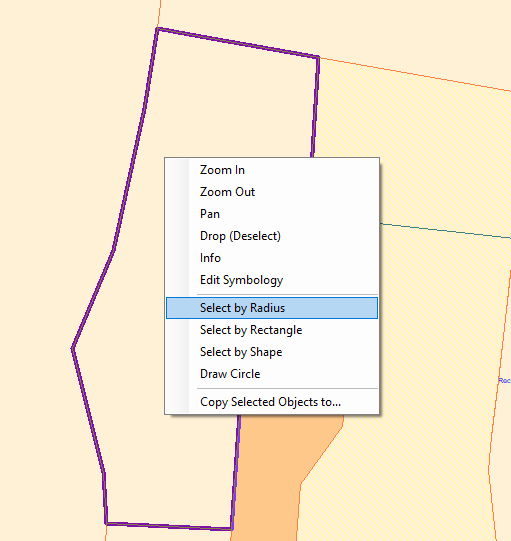
To select an individual feature in Quickmap, use the Info Tool and click on the feature. The feature will be highlighted on the map, and its attributes will appear in the Report window.
You can also change the appearance of selected features by modifying GP 305 in the Symbology Editor.
To deselect a feature, click the Drop button on the toolbar, or right-click and choose Drop (Deselect).
If you want to select multiple features within a layer, first make that layer the Active Layer. To do this, right-click the layer in the Layer Control window and select Set as Active Layer.
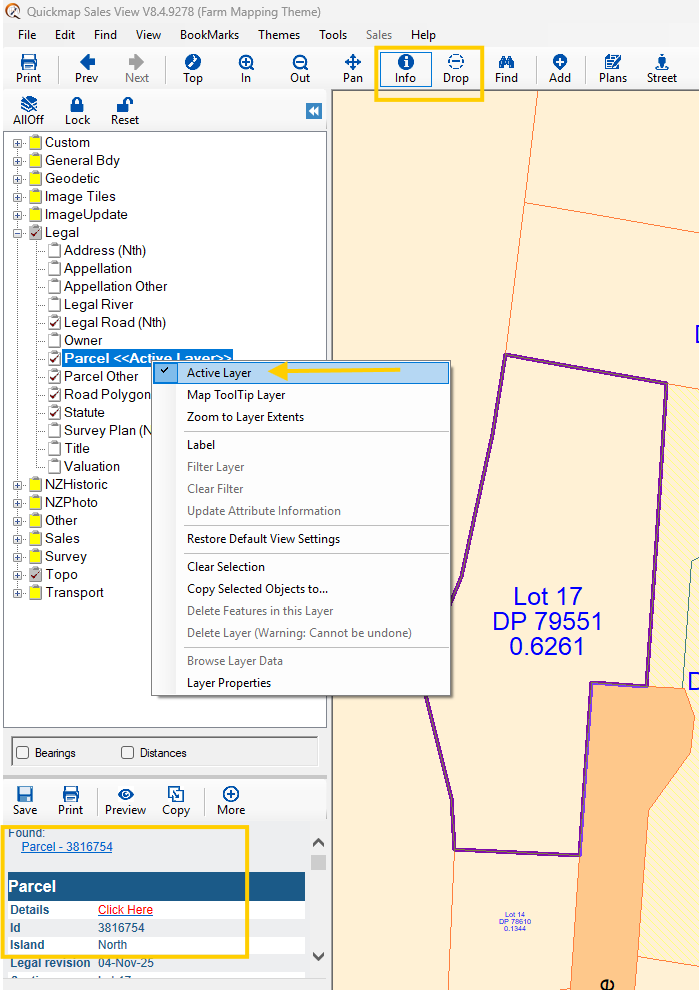
Sometimes selecting the correct feature can be difficult if other layers overlap. Setting an Active Layer prevents Quickmap from selecting features from other layers, making selection easier. In other words, when a layer is the ‘active layer’, using the Info Tool to click on objects (e.g., parcels) will only select features from that layer.
To identify which layer a feature belongs to, toggle the layer’s visibility off and on (tick the checkbox twice). If the feature disappears, it is part of that layer.
Other ways to select multiple features:
-
Right-click on the map and choose a selection option from the menu.