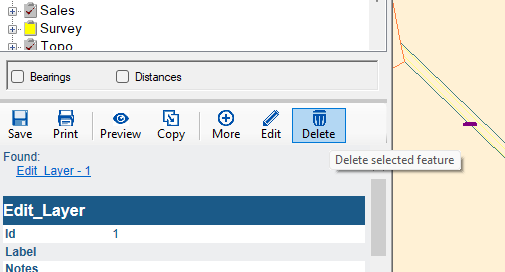
To delete individual features from the Edit Layer or a Custom Layer, make sure the feature is selected (using the Info Tool). TIP, to select the feature, make sure the layer the feature is saved in is made the ‘Active Layer’ which you can do by left clicking on the layer.
Then from within the Info Window, select the Delete icon – or push Delete on the keyboard. You will be asked for confirmation that you wish to delete this feature.
NOTE: Edit>Cut will also delete a single feature from your editable layer. This function is a backward capability for previous versions of Quickmap.
To delete all features from the Edit Layer or your own layer, Click with the right mouse button on the Layer and select Delete Features in this Layer.
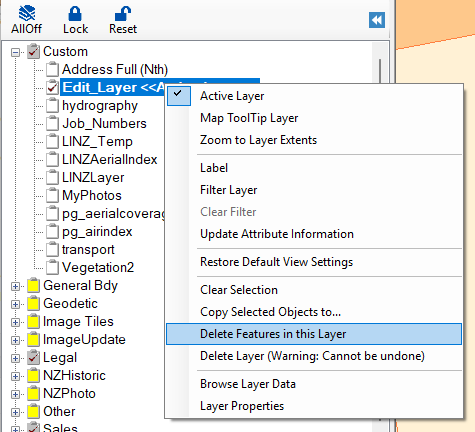
The next dialog box will give you options:
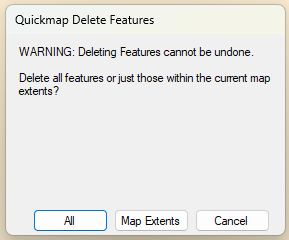
• All will delete EVERY feature in this Layer
• Map Extents will delete EVERY feature in the screen extent (regardless of whether it is selected or not)
• Cancel will exit you from this operation without deleting anything