The data provided in Quickmap is sorted into a series of layers. Each layer contains a logical grouping of map features (data) that have some similarity. Combining data into layers enables operations to be carried out on that data as a group.
Operations that are performed at a layer level are Visibility, Selection, and Edit. New Layers can be added, including Image Layers.
Combinations of layers are further grouped into Layer groups. To view the layers under any given Layer group click on the plus symbol next to the group.
A layer can be likened to a transparent sheet with part of a map drawn on it, and the map then View > Dock Windows might be ticked and the displays all the layers that are visible.
If the Layer Control Window is not visible, click on the ‘Layers’ Button on the Toolbar. If you cannot see the Layers Button then View > Dock Windows might be ticked and the Layer control window hidden. Look for a small blue double arrow button in the top left corner to ‘Show Window’.
For the Layer Window to remain in place, look at View > Docking Window.
Buttons can be used to turn all Layers Off, to Lock Layers and Reset them.
For more information on Layers, look at:
Default Layer Visibility
Reset Layer Default
Layer Label
Layer Filter
Add your own Layers
Layer Visibility
Quickmap automatically sets different layers visible or invisible depending on the scale the map is drawn at. At any time, you can override the default visibility for any layer by clicking in the check box next to the layer.
When you click on the layer visibility check box, the layer name is displayed in red, indicating you have overridden the default. By right mouse clicking on that layer, you will see whether the default settings are being used or whether the layer has been manually turned on or manually turned off.
To return all layers back to their default visibility, click the Reset button on the Layer Control Window.
The All Off Button will turn ALL Layers off. This can also be achieved by right-mouse clicking on the Layer Folder if you wish all Layers in a particular Folder Turned Off or On.
The visibility will revert to the default when you exit Quickmap. To change the default visibility permanently for any layer(s), Right Mouse click on the layer and select PROPERTIES off the menu.
Layer Properties
The Layer Properties window allows you to change when layers are drawn, and in what order.
To change the Properties of any map Layer click the right mouse button on the layer that you want to modify and select the Layer Properties option.
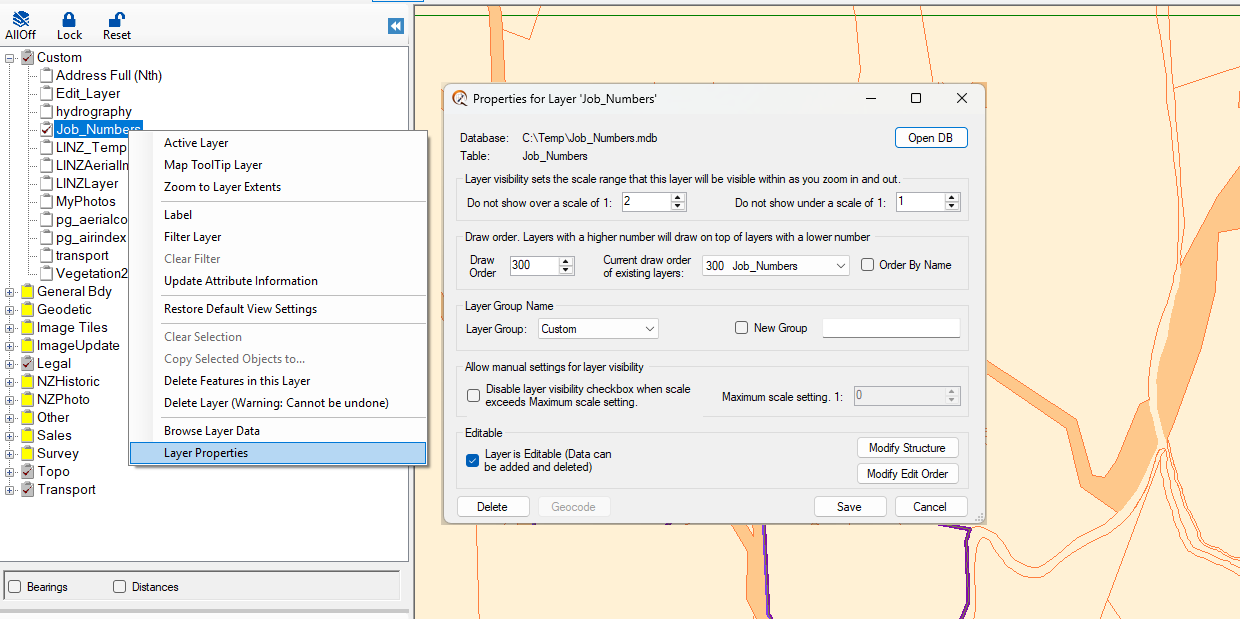
The Layer Properties window is split into 4 sections. These are:
• Layer Visibility – enabling the scale range within which the layer will be visible when zooming in and out.
• Draw Order – Draw sequence of layers i.e. which layers get drawn on top of others.
• Layer Group – Define the Layer Group under which you want the layer to appear.
• Allow manual settings for layer visibility – Tick box that enables layer to be turned off above certain scales
NOTE: For a Layer NEVER to turn on see Default Layer Visibility
Additional Layer Properties window options are:
• Save button is used to save any options modified.
• Cancel button is used to close the form.
• Delete button is used to delete layers. NOTE: no default layers can be deleted.
• Geocode button – Refer to the Manual Address Geocoding section.
• Modify Structure button – Add/Remove fields which can be reported on or located under the Custom Find
• Modify Edit Order button – Alters order fields appear in the Attribute Editor when Adding Data