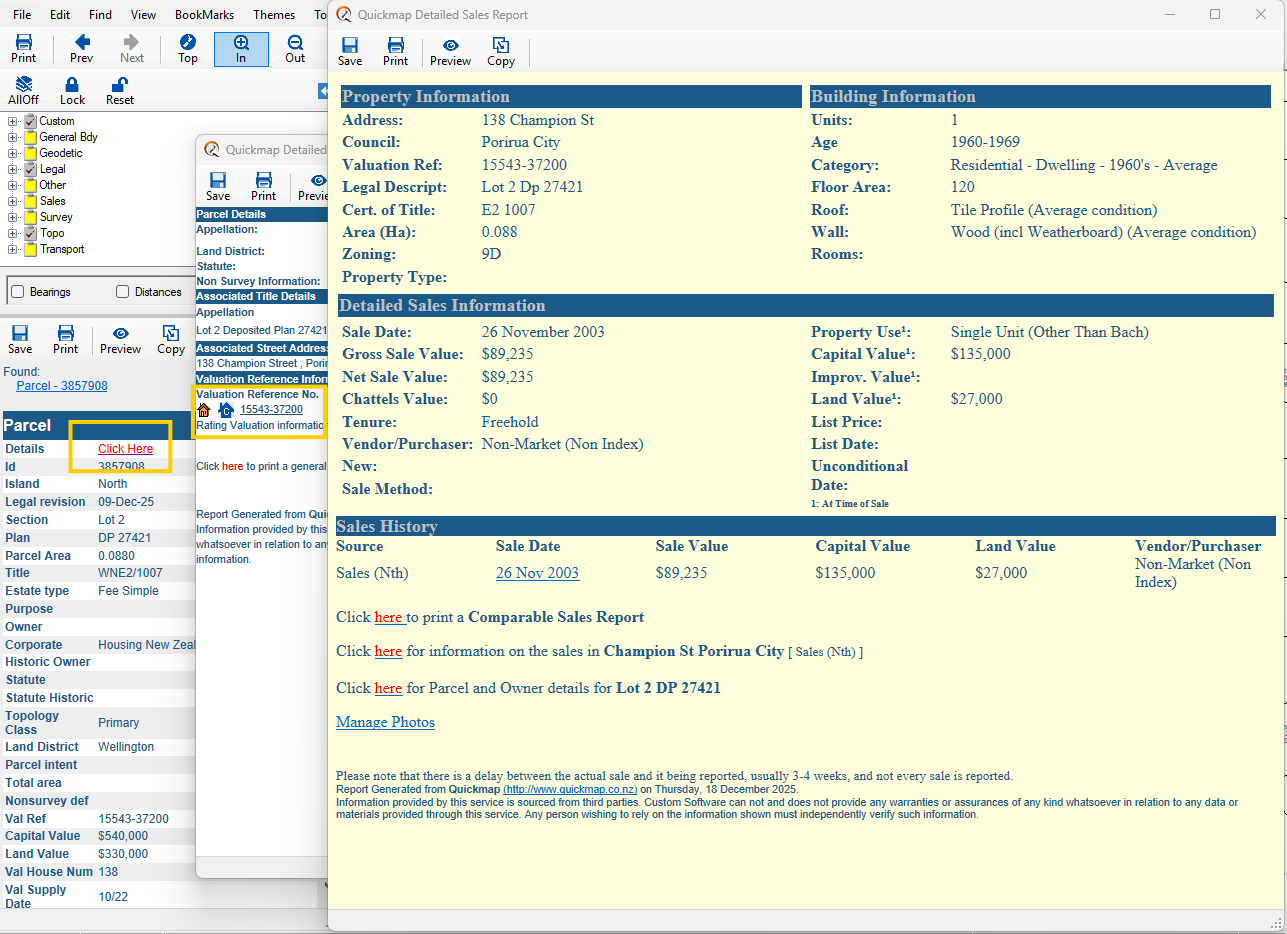
Example of the Detailed Sales Report window in Quickmap SalesView.
Start by locating your target property using the Find Tool.
Open the Detailed Property Report window by selecting ‘Click Here’ under Parcel Details on the Property Information window on the left.
Click the Valuation Reference Number hyperlink or the Blue House Icon to access the Detailed Sales Report.
Tip: If you have Quickmap SalesView, the Blue House Icon on the Detailed Property Report is a quick way to access the Detailed Sales Report.
The Detailed Sales Report will display information such as:
- Property / Building information
- Sales information
- Sales History
At the bottom of the Detailed Sales Report form, you can also:
-
- ➡ Generate a Comparable Sales Report
- ➡ Generate a Thematic Map (coloring parcels based on sale price)
- ➡ Report on sales by road
➡ Using the Sales Filter Form
To bring up the Sales Filter form, select the Sales Icon from the Toolbar.
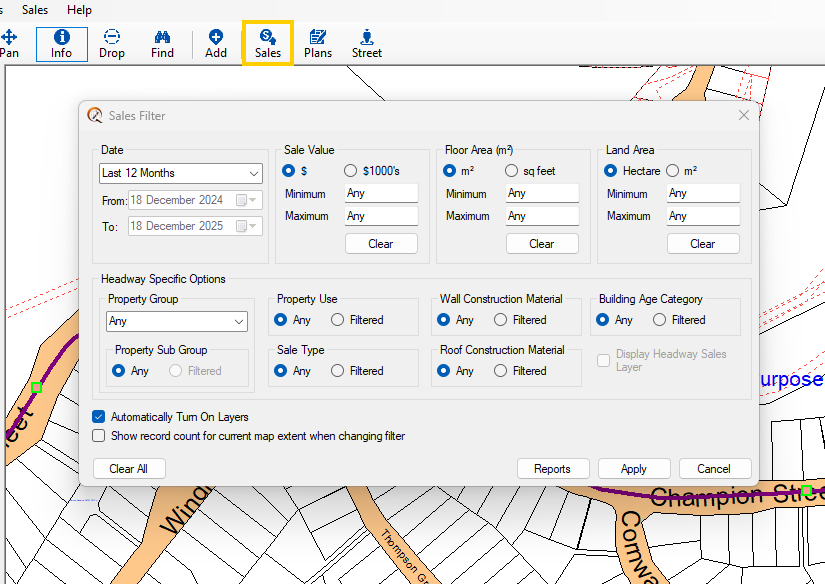
Next: see more information on using the Sales Filter form.
Please like this page: