Using the Find Window in Quickmap
The Find Window is set to display automatically when Quickmap opens. However, you can hide or show the Quickmap search (Find) window at startup. The Find Window allows you to locate one or more properties using a variety of search methods such as Address, Owner, Legal Description, Place Name, and more.
Starting a New Search
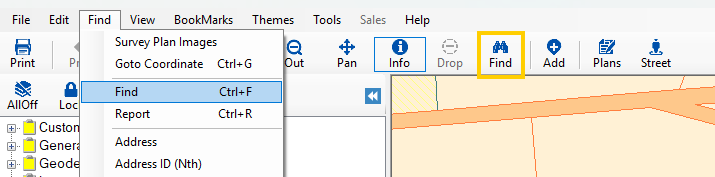
To begin a new search, select the FIND icon on the Toolbar, or press Ctrl + F.
Choosing Search Criteria
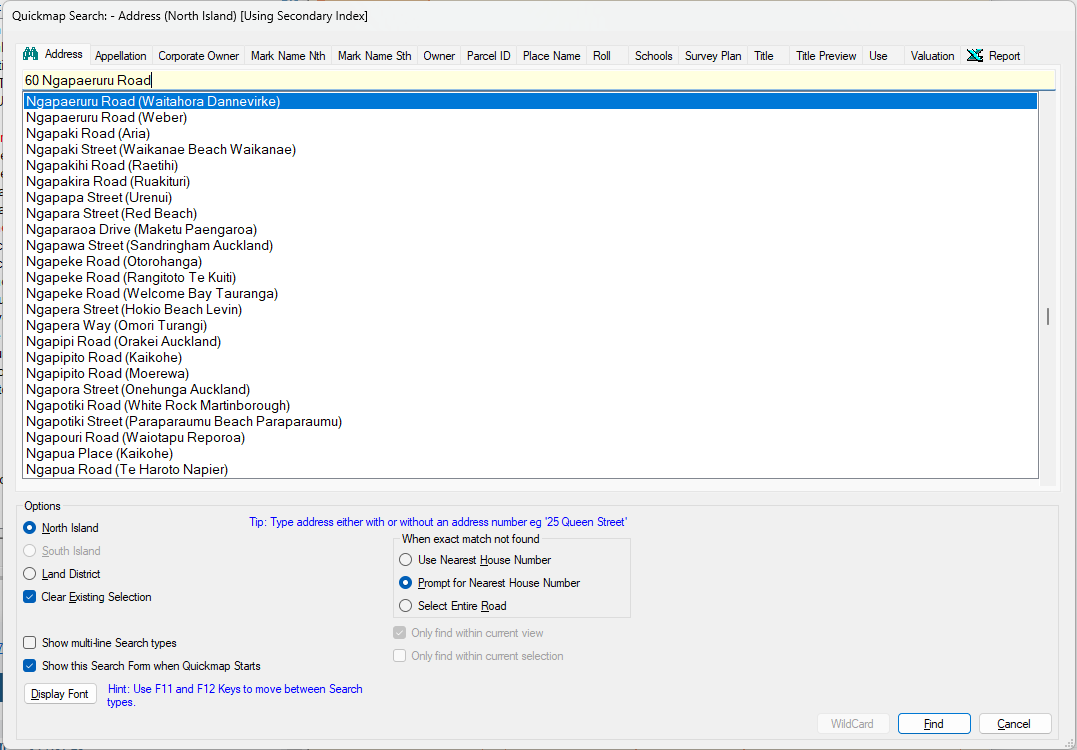
You can change the type of item you are searching for by clicking one of the tabs across the top of the form. If more than one Island is installed, you can switch the Island by clicking the North or South button at the bottom of the form.
Performing a Search
Type your search criteria into the bar at the top of the form. Quickmap automatically matches what you type against the database, and the nearest match appears in the listbox. The highlighted item in the listbox will be used for searching when you press Enter or click the Find button. If the item does not appear in the listbox, it does not exist on the map.
Address Search Options
The Address search allows you to configure what to do if the house number is missing:
- Use Nearest House Number: Automatically finds the nearest number if the one you typed does not exist. For example, typing 23a will default to 23 if only 23 exists.
- Prompt for Nearest House Number: Displays a list of possible house numbers if the one entered cannot be found.
- Select Entire Road: Highlights the entire road when the house number cannot be found.
Additional Resources
See also: Wildcard Search