Quickmap Overlay in Google Earth
Quickmap allows map layers to be overlayed in Google Earth, or Google Earth photography to be pasted into Quickmap.
To overlay Quickmap in Google Earth:
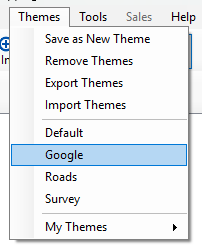
Tip: Select the Google Theme which will ensure the parcels and NZ Layers are hollow. Otherwise, adjust symbology to meet individual requirements.
Note: Google Earth is required to be installed on the computer. See http://earth.google.com/ for downloads and licensing agreements.
From within Quickmap, select View → View Map in Google Earth off the menu (or Shift/F3).
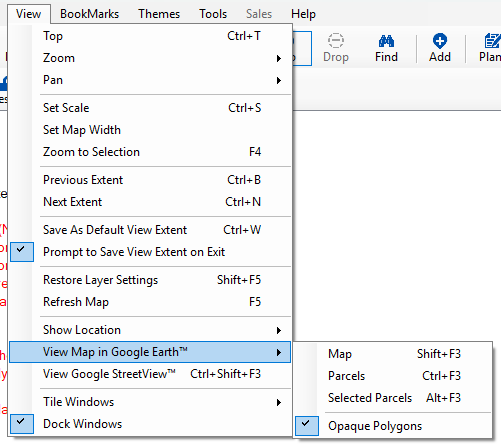
There are four options:
- MAP – creates a Raster file which you can adjust/move around in Google Earth.
Note: Raster images are not ortho-rectified, so it may be necessary to realign boundaries.
- PARCELS – creates a KML file which you cannot adjust/move in Google Earth.
- Another PARCELS option – also creates a KML file which cannot be moved.
- Tick ON ‘Opaque Polygons’ to fill the polygon in an opaque shade of white.
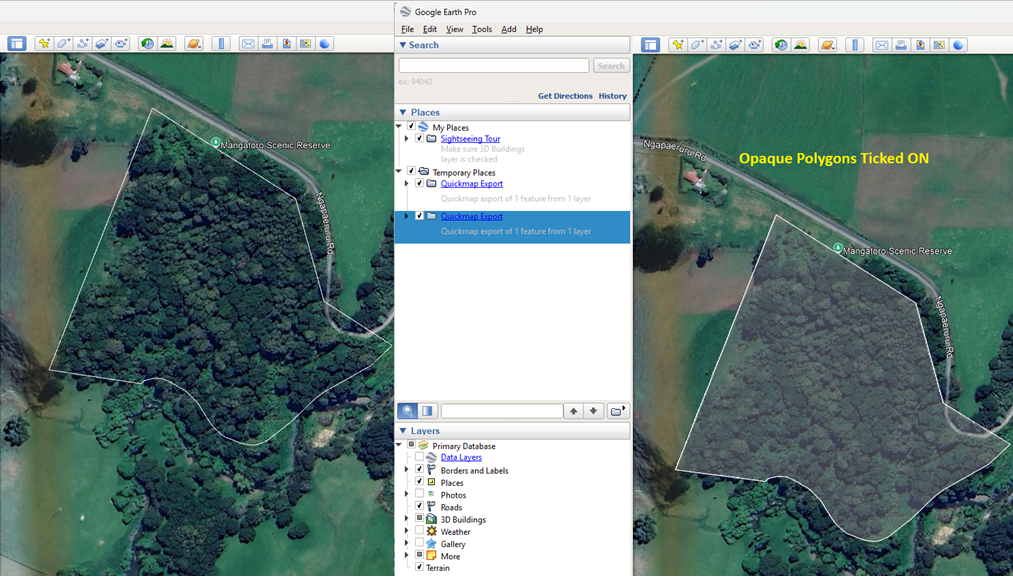
Note: Google images are not ortho-rectified, so it may be necessary to realign boundaries. Do not save Quickmap overlays in the Temporary Places or My Places folder. To save a file, open the folder, right-click on ‘Quickmap Export’, and select Save As to save as a .kmz file.
Copy and Paste Image from Google Earth
It is possible to copy images from Google Earth and paste them into Quickmap. This works for images from any source. However, unless the image is an ECW with built-in coordinates, the image will need to be manually placed and resized.
In Google Earth, select Edit → Copy Image. Then in Quickmap, press CTRL+V or Edit → Paste.
Tip: You will be asked which Layer to paste the image to. The Layer must be an image layer. Quickmap can automatically place the Google Earth photo in the correct location. If it cannot, use the provided tools to move, resize, or rotate the image.
Note: Quickmap does not license the use of Google Earth, so ensure your Google license agreement allows this. Once the image is accepted into the layer, the positioning cannot be modified; the image needs to be reinserted to make changes.
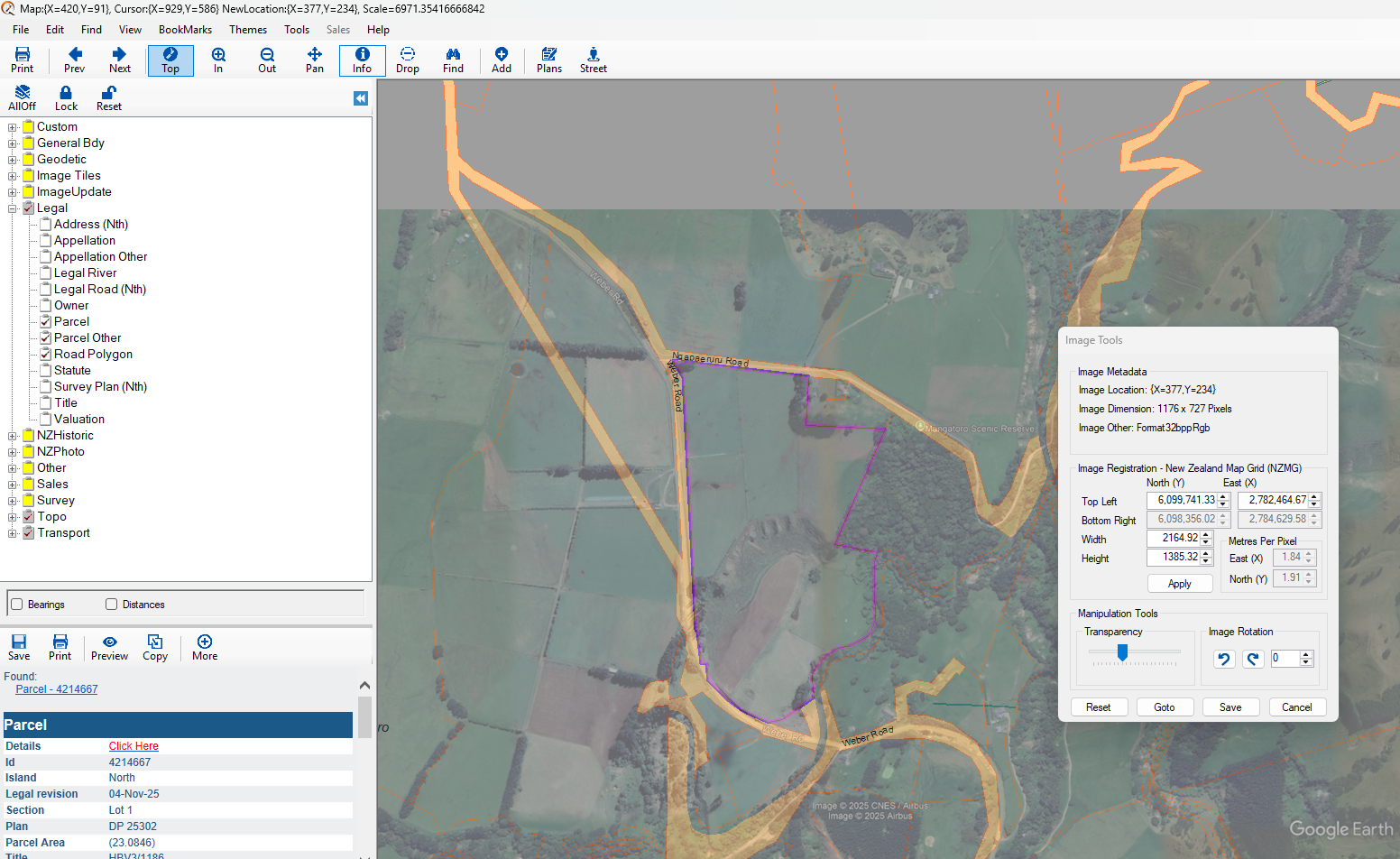
Note: To delete an image, select it with the Info Tool and press Delete.
For more troubleshooting, see: Google Earth
Please like this page: